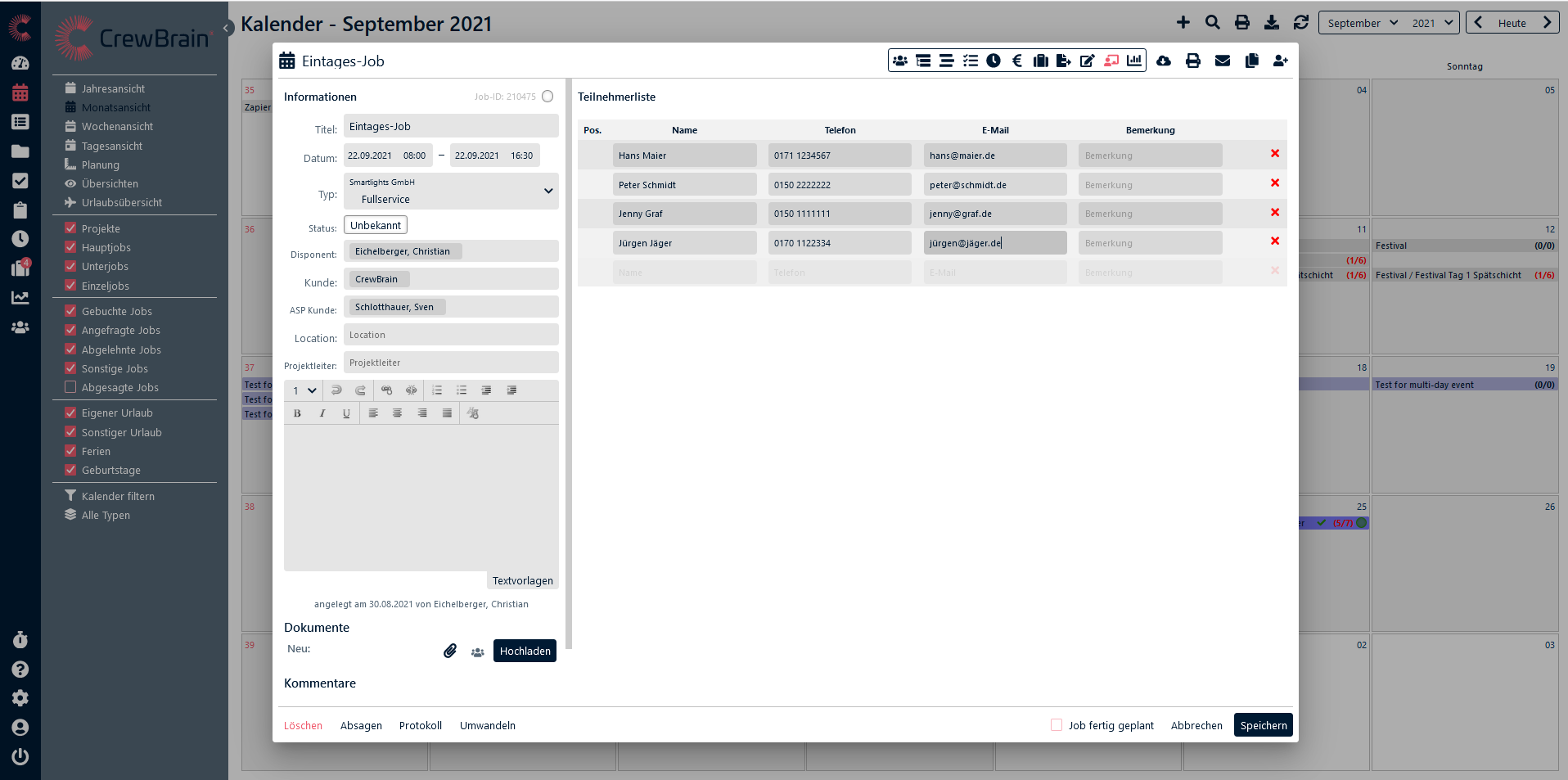
With the help of individual tabs, additional information such as time, material, guest lists, or other additional data fields can be created individually for all jobs or projects under Administration > Jobs / Projects > Individual Tabs. These tabs are displayed as additional icons at the top within a job or project and can be opened there. When creating the tabs, you can already decide for which jobs and job types they should be displayed. Depending on the display option, either a list or a table view is available, as well as a dedicated print view.
Watch our short video here.
Click on “Add further tab”. Choose “Empty tab” for an individual tab or use our templates (Guest list, Timetable, Participant list, Hotel list).
¶ Empty Tab
Enter a name for your tab and select an icon under which you will find the tab in the job or project. Choose the type: “Simple” for a list view, where only a single value is assigned to a field; “Table” for a tabular view, where the assigned fields are displayed in a table. Then select whether and who should be notified about the tabs. Depending on the setting under My Account > Notifications > Notification on changes in job, the notification can be sent via e-mail and/or push notification. Then check in which jobs and job types the tab should be displayed. If one of the fields should be filled with requested and/or booked employees (field/column type employee), this can be automated via autofill. However, this only works in the tabular view.
Then name the individual fields or columns via “+ Add further additional information”. Enter the name there and, if the field or column should have a different title, also the title. Under “Type” you can select how the respective field or column is to be filled. For example, as a text field, as a date field, with clients, documents, signatures, and much more. If you select a dropdown menu, you can create the individual entries available for selection here. If you additionally check the “Option for other”, the employee can enter an individual value via a free text field for this choice.
The individual fields or columns can then be marked as mandatory (must be filled), as private field (visible only to the scheduler), and/or relevant for the print view. Click save.
Finally, select who has which access to this tab.
Both in the administration and in the job or project itself, the position of the individual rows can be moved. By clicking on the header row of a table, the sorting in the job can also be done automatically. The sorting set this way is applied when saving and automatically displayed next time.
¶ Templates
Use our templates such as “Guest list”, “Timetable”, “Participant list”, or “Hotel list” as pre-generated tabs. If necessary, they can be modified just like with “Empty Tabs”.
¶ Import
You can import individual tab data from another job. However, importing from an Excel or CSV file is not possible.