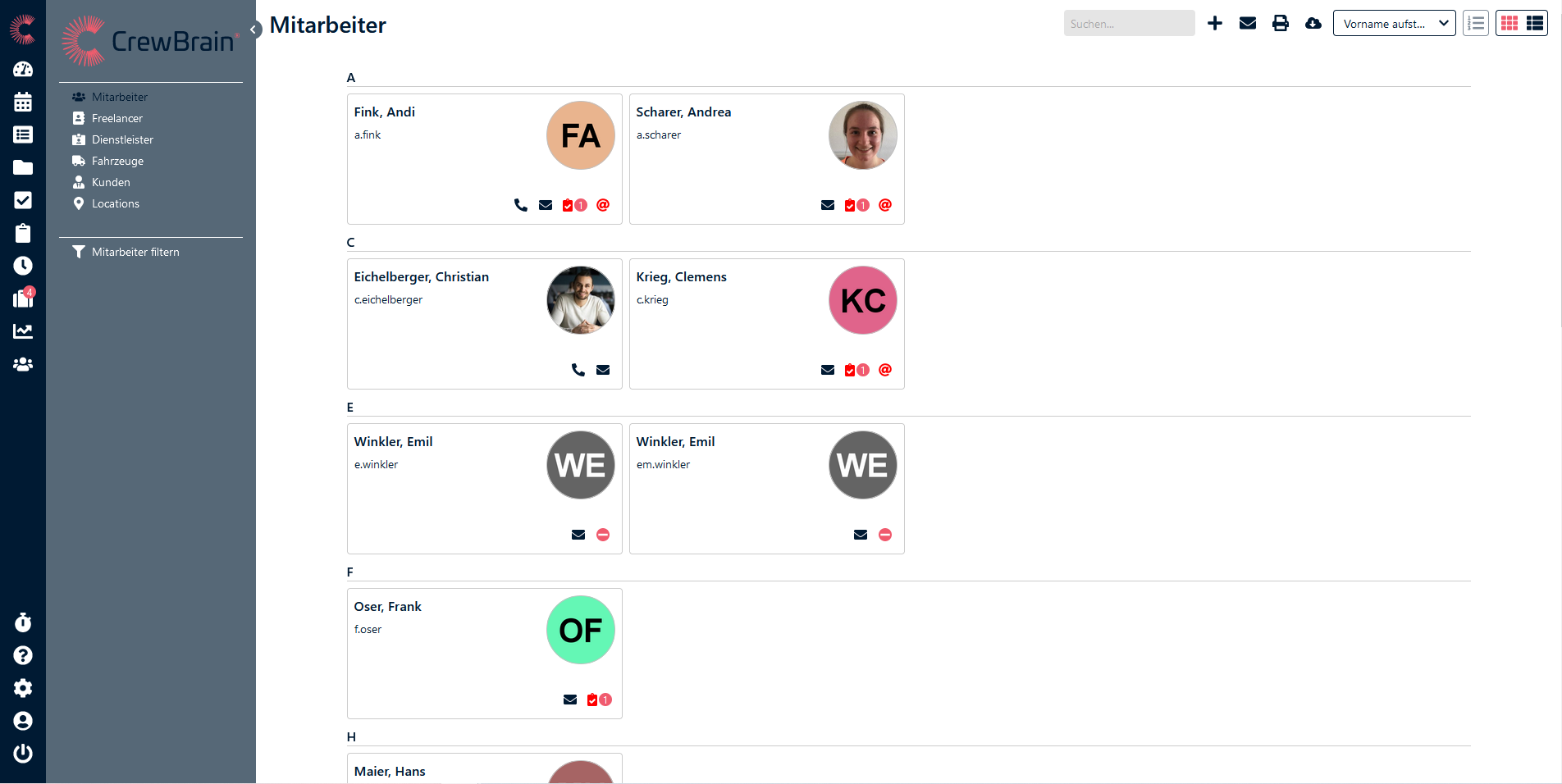
In the base data, users start by default in the grid view with business cards. This provides a quick overview of the most important information about the respective base data object, which can also be contacted directly via the corresponding icon. For personnel, additional information such as missing certificates or invalid email addresses is also displayed. Click on a base data object to access the detail view, or on the plus sign at the top right to create a new one.
Using the icons at the top right, you can not only create new employees but also contact employees, print employee lists, download data in CSV or XLSX format, or upload mass documents such as payroll statements (e.g., from DATEV) or mail merges, which are then automatically shared and assigned to individual employees via text recognition. If the assignment is unambiguous, CrewBrain will automatically suggest the person. To check the assignment, click on "Preview" in the respective row. If the assignment is incorrect, it can be corrected at this point. Random checks should always be carried out to avoid misassignments. When saving the document, it is split among the respective employees. Pages not assigned to any employee are discarded. Optionally, the created documents can also be sent directly to the respective employee.
Furthermore, you can change the sorting of employees at the top right and switch to the list view.