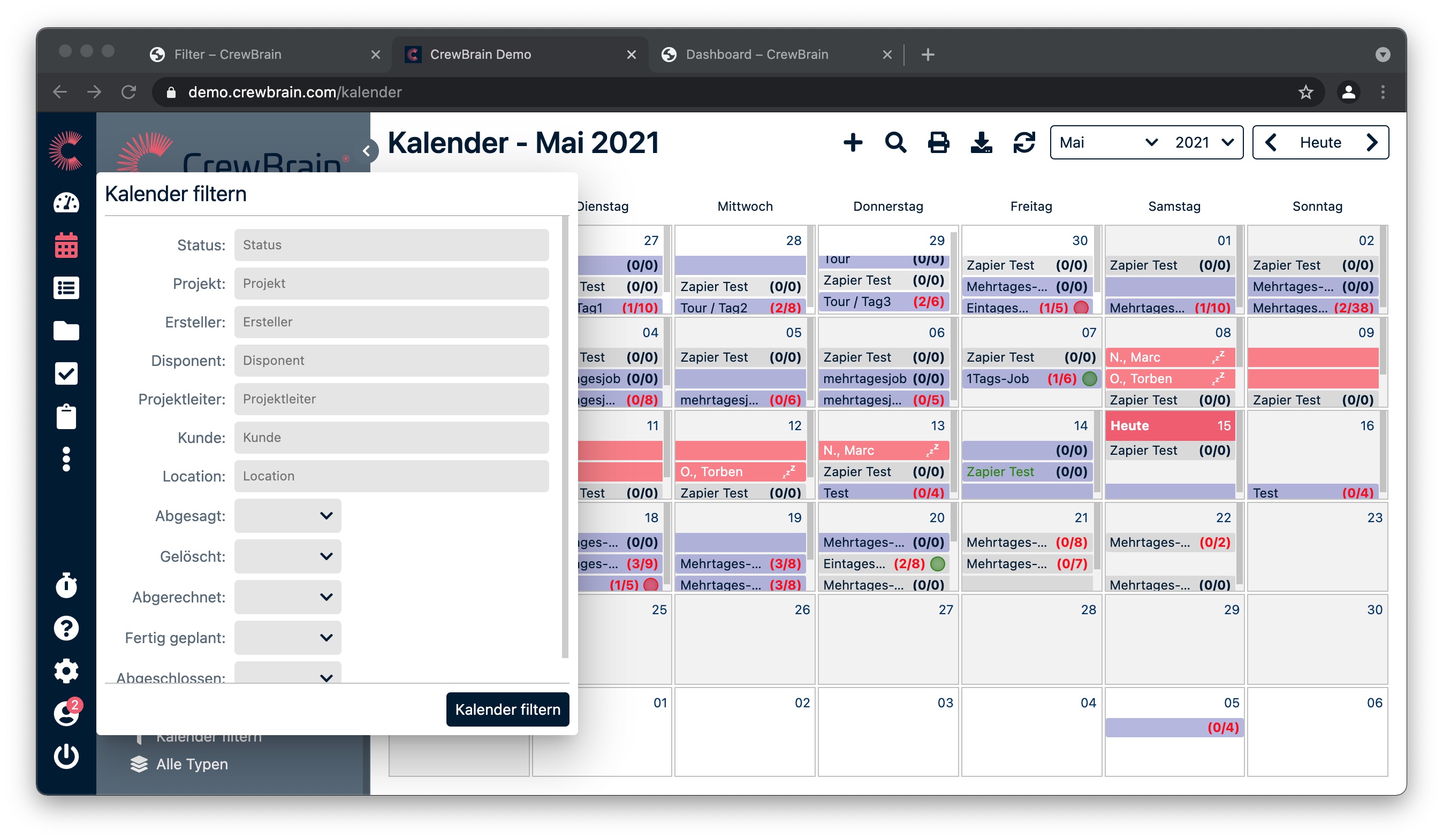
With the numerous options for setting filters, CrewBrain always offers you the optimal overview. Filters can be set in all calendar views. Simply check or uncheck the boxes wherever you want to display exactly what you need or are looking for in the calendar. At the bottom of the navigation — except in the bar view and overviews — you will find the function "Filter calendar," which allows you to filter by project or job details. In the bar view, planning view, and overviews, there is an additional filter called "Filter employees."
Tip: For an even better overview of your projects and jobs, either check only subjobs and main jobs or subjobs and solo jobs (depending on how you use our three levels - project, mainjobs, subjobs).
All set filters can be saved as "filter favorites." If you want your employees to work with the same "filter favorites," you can share them under My Account > Filter Favorites with other employees, user groups, or departments.
¶ Filter calendar - by project or job details
In the annual, monthly, weekly, or planning view, click on Filter calendar to open a dialog where you can filter by details of projects or jobs. This means you can filter here by locations, departments, status, project managers, clients, staffing needs, and much more. Under "all types," you can set additional filters for job or project types. You can save your filters and thus create filter favorites.
¶ Filter by employees
In the bar and planning view, as well as in the overviews, you can filter by "employees." A dialog opens where you can search for employees by status, location, department, categories, skill level, certificate, language, or radius. This speeds up your search when you need employees who meet certain criteria. Using the filter by status, for example, the calendar view can be restricted to people who have not yet been requested or booked, or only those who are booked.
Under Save filter, you can save your set filters, which then appear as filter favorites in the navigation.
¶ Filter by vehicles
In the bar and planning views, as well as in the overviews, you can also filter by vehicles. To do this, click on "Filter vehicles" at the bottom. You can now select a vehicle type and/or category. You can customize the categories under Administration > Vehicles > Categories. The filters saved here also appear as filter favorites in the navigation.