CrewBrain offers the possibility to map employee login via Azure Single Sign-On ("Login with Microsoft"). For this purpose, CrewBrain must be linked to the respective Azure tenant.
After the feature has been activated by support, the relevant parameters can be stored under Administration > System > Microsoft Azure.
¶ Find and enter Tenant ID
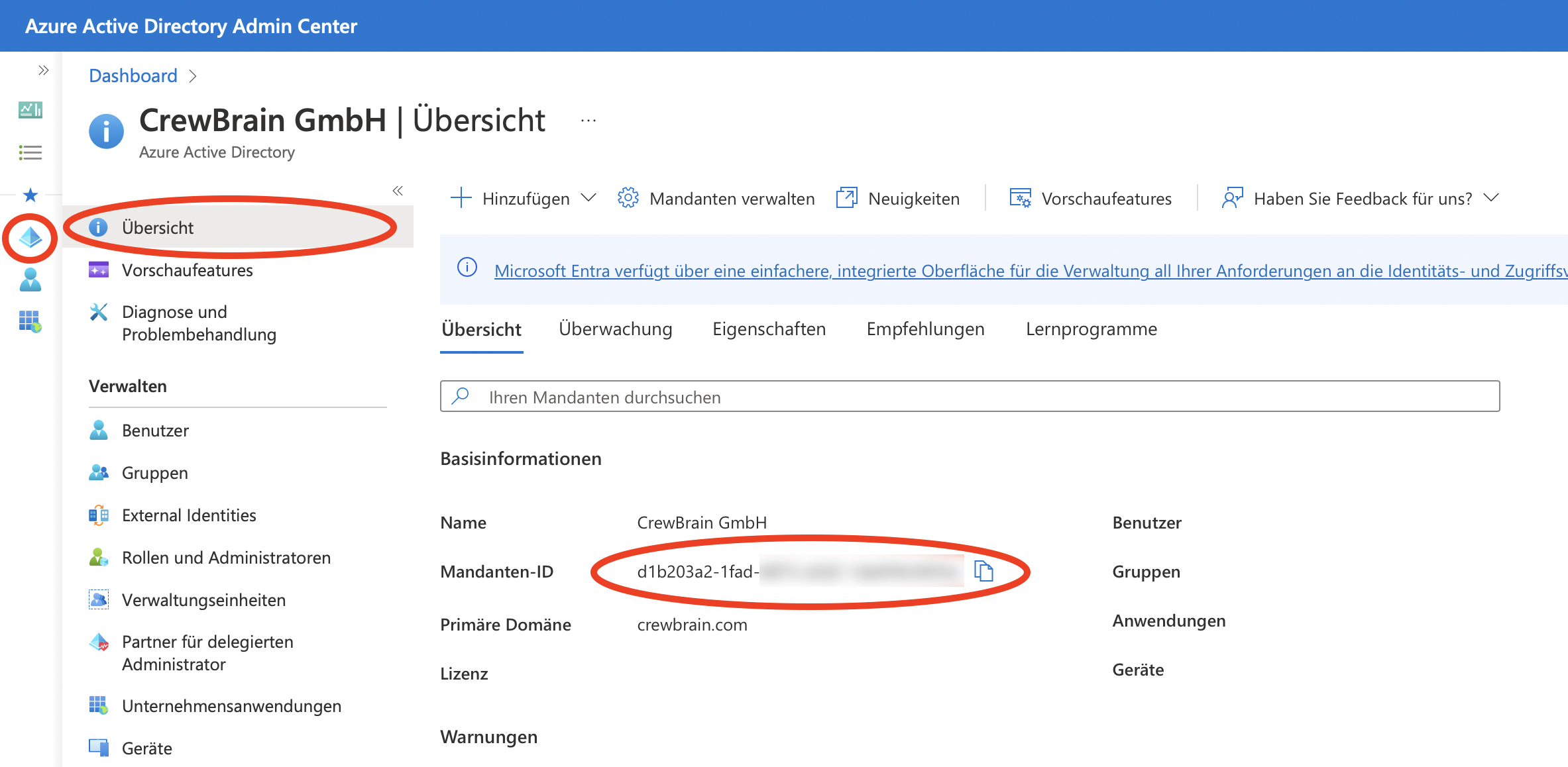
The Microsoft Admin Center can be accessed via the URL https://aad.portal.azure.com/. Click on "Azure Active Directory" and then on "Overview" to find the Tenant ID ("Directory ID"). Copy this ID into the "Azure Tenant" field in CrewBrain (Administration > System > Microsoft Azure).
¶ Register CrewBrain as an app
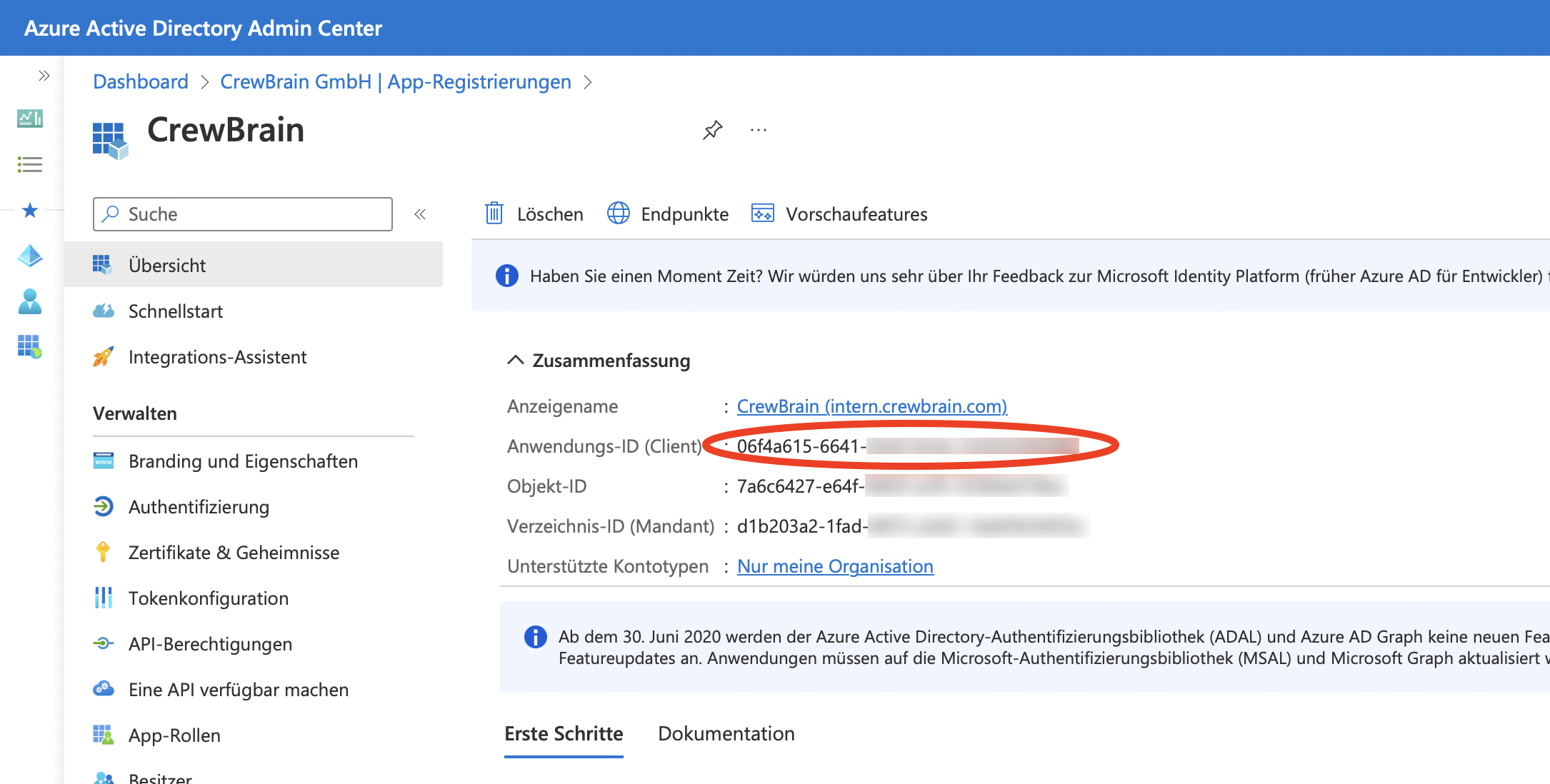
In the Microsoft Admin Center, click on "App registrations" on the left and then on "New registration". Enter a name (e.g. "CrewBrain") and set who can sign in (usually "Accounts in this organizational directory only"). Do not enter a redirect URL yet; this will be created separately later. Then click "Register". Afterwards, open the application from the list to get the Application ID, which you also copy into the "Client ID" field in CrewBrain.
¶ Enter redirect URLs
Within the app registration detail view, click on "Authentication". Then click on "Add a platform" and select "Web". Now enter the following redirect URL, replacing "subdomain" with your individual CrewBrain subdomain:
https://subdomain.crewbrain.com/azureauth/
In the section "Implicit grant and hybrid flows", select the option "Access tokens". Then save the changes.
Now you can add further URLs. Please also add the following URLs:
https://subdomain.crewbrain.com/azureappauth/ - relevant for login from the app
https://subdomain.crewbrain.com/o365sync/ - relevant for Office 365 sync
Important: depending on which server your account is located on, the server name must be placed between “subdomain” and “crewbrain” - for example, https://subdomain.eu2.crewbrain.com. In this case, the “normal” URL should still be added (i.e., without the server name), as the server name is irrelevant when logging in via the app, for example.
¶ Enter secret client key
To secure the connection with Azure, a secret client key must be stored. To do this, click on "Certificates & secrets" in the app registration detail area and then on "Client secrets". Now click on "New client secret", enter a description and the desired validity. Then click Add.
IMPORTANT: The key is only displayed in plain text immediately after saving. Copy this key into the "Client Secret" field in CrewBrain. The key will not be shown again in CrewBrain later.
IMPORTANT: Each key has a validity period. Set a reminder in your to-do list so that you can generate a new key and store it in CrewBrain in time before expiration. Otherwise, login will no longer be possible after the key expires!
¶ Block login
If login is performed via Microsoft Azure, it is possible to block the "normal" login. In this case, users can no longer log in with username and password. Since in most cases external users also use the system, this setting must be made on a user level in the master data.
¶ Alternative e-mail address
In some cases, the e-mail address for Azure login differs from the e-mail address used in CrewBrain. In this case, the Azure e-mail address can be stored in the "Username" field in the master data, and the Azure authentication will also assign this correctly.